How to Recover a Trello Board from an Amazing Fields Backup
If you need to restore data after accidental deletion, data corruption, or an unwanted change, Amazing Fields backups make recovery straightforward. Because each backup is a standard Trello board, you can open it just like any other board and use the data directly.
To learn more about how to back up your board with Amazing Fields, see: How to Automatically Back Up Your Trello Board with Amazing Fields.
Finding your backup
- In Trello, go to your boards view.
- Scroll down to the workspace that contains your main board.
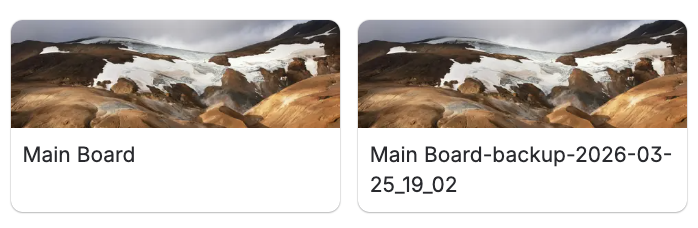
- Look for boards with names in the format [Board Name]-Backup-[Date] [Time]. These are your backup copies.
- Open the backup board that corresponds to the point in time you want to recover from.
Recovery Option 1: Copy Individual Cards
If you only need to restore specific cards rather than the entire board, this is possible. Open the backup board and find the cards you want to restore. From there, open each card and begin copying your cards over. To learn more about copying your cards, see: How to Copy Cards Across Boards with Amazing Fields.
Recovery Option 2: Promote the Backup to Production
If you need to restore the entire board to a previous state:
- Rename your current (broken) board to something like [Board Name] — Broken so it is out of the way.
- Rename the backup board to the original board name.
- Re-share the board with all team members who need access (backup boards are restricted to admins only).
- Once the team is back on the restored board, you can archive or delete the broken board.
Note: Amazing Fields configuration is included in the backup board copy. Your fields, settings, and conditional styling rules will all be present on the restored board.