Connecting Amazing Fields to Trello Custom Fields
Note: Custom field wrapping is available to supporters only. If you're on the free plan, you'll need to upgrade.
Amazing Fields gives you powerful formatting, styling, and editing capabilities, but some core Trello features like automations, filtering, mobile apps, and third-party integrations (e.g. Zapier) can only work with native Trello Custom Fields.
The Custom Field Wrapper solves this. It links an Amazing Field to a native Trello Custom Field so that your data is stored in both places simultaneously. You get the full Amazing Fields experience on the front end, while Trello's native features can read and write the same data in the background.
Wrapping custom fields requires a paid Trello account, as it uses Trello's native Custom Fields functionality.
Setting up the Custom Field Wrapper
- Open Amazing Fields Settings by clicking the Amazing Fields icon in the top-right corner of the board.
- Select the field you want to wrap.
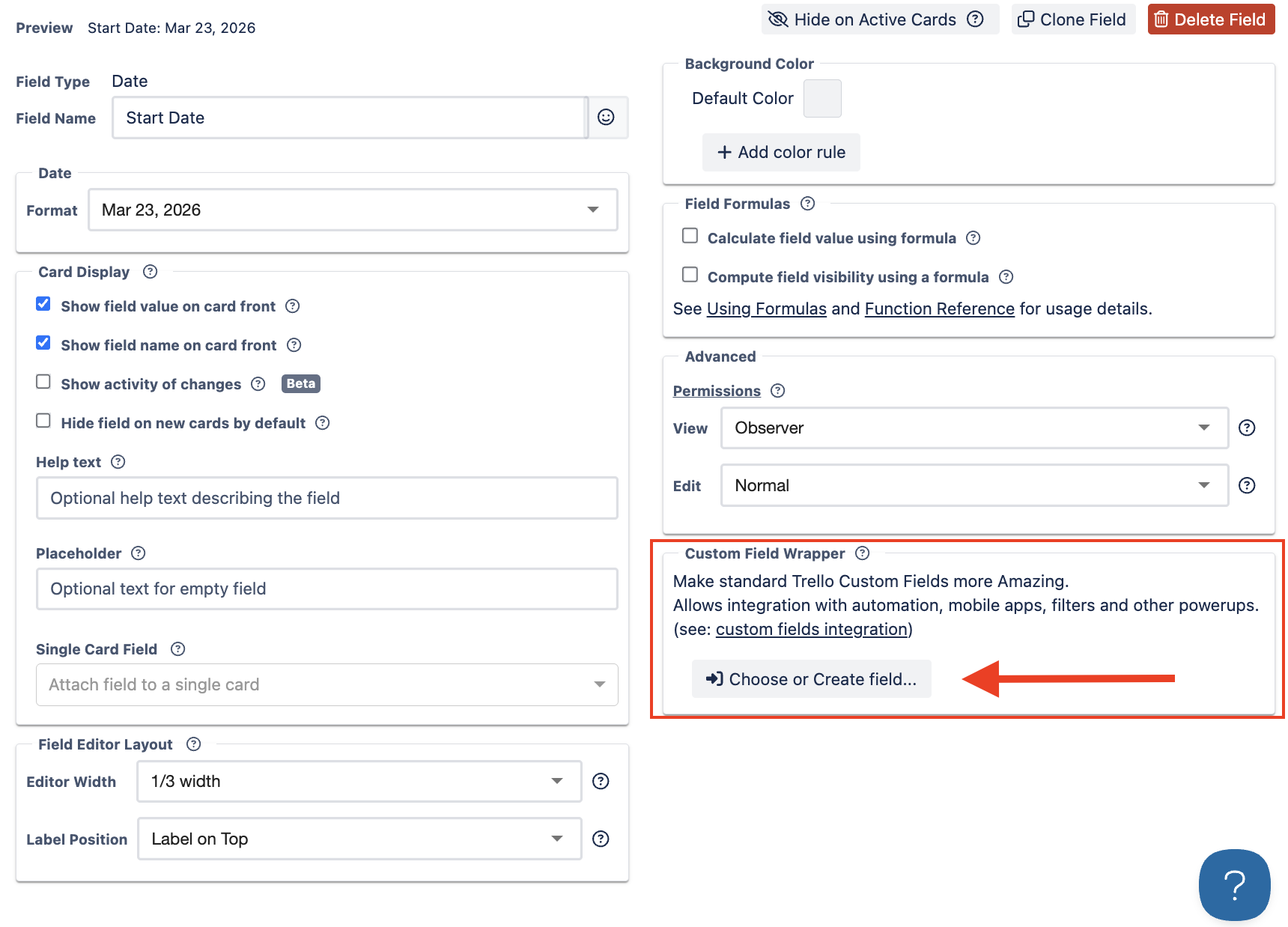
- Scroll to the Custom Field Wrapper section in the field settings.
- Click "Choose or Create field..." and select an existing Trello Custom Field, or create a new one. Amazing Fields will automatically keep the two fields in sync, no further configuration needed.
Important: Do not manually edit the wrapped Custom Field's settings in Trello. Amazing Fields manages these settings automatically. Manual changes can cause configuration issues. Always update settings through Amazing Fields.
Data loss risk: Amazing Fields does not store a separate copy of field data.
If another extension or integration accidentally clears the wrapped Custom Field, Amazing Fields will reflect that empty value.
How it works
Once wrapped, the linked Trello Custom Field will appear with a "_" prefix in its name (e.g. _Customer). This prefix indicates the field is managed by Amazing Fields.
Any value you enter or update in Amazing Fields will instantly reflect in the linked Custom Field, and vice versa. This means you can:
- Trigger Trello automations based on field values
- Use filters on the Trello board
- Read and write values from the Trello mobile app
- Connect to tools like Zapier, Make, or other Power-Ups via the Custom Field
- Note that multi-select dropdown fields cannot be linked because Trello dropdowns only support single select
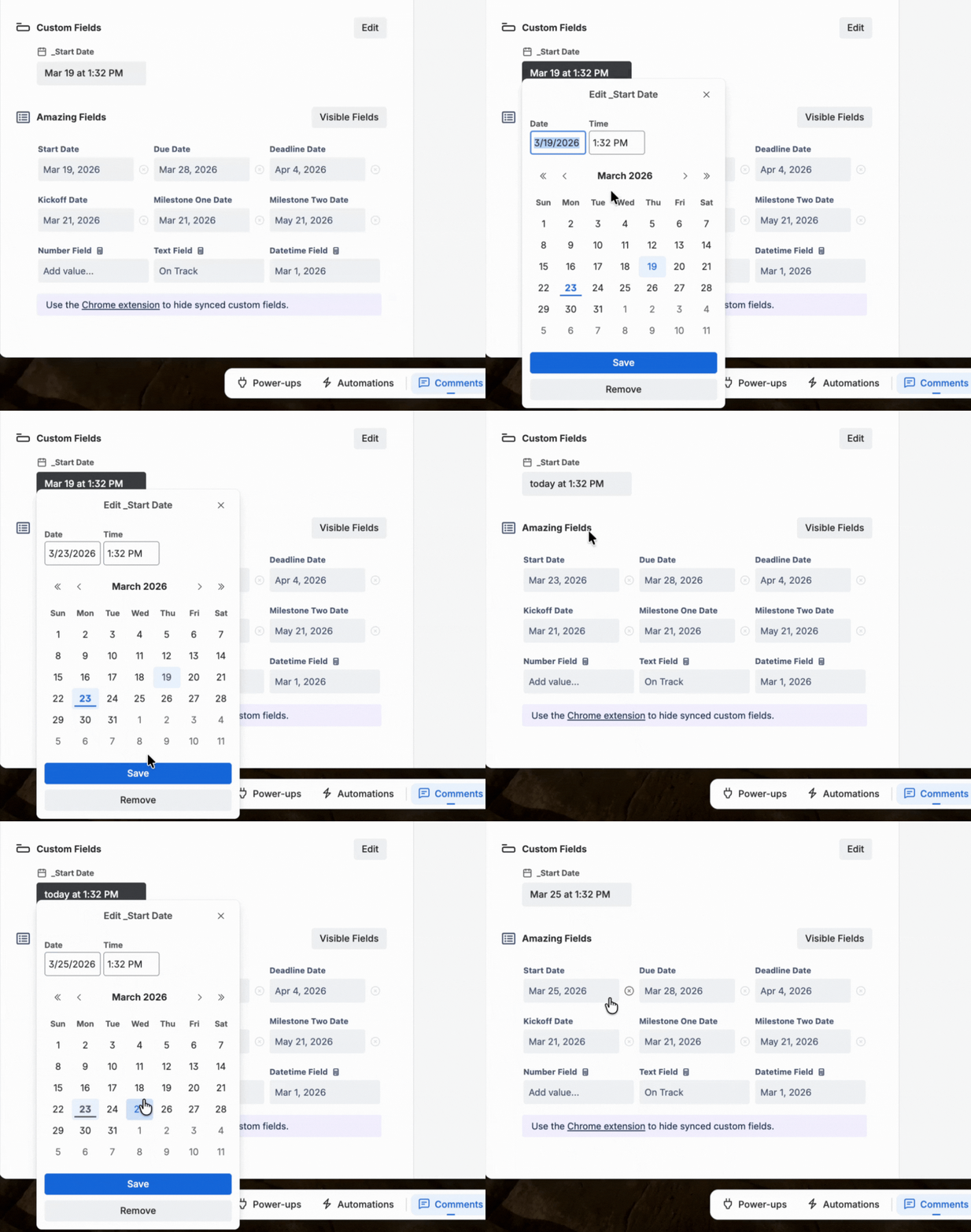
Tip: After creating custom wrapped fields, you will have two sets of fields, but there is a workaround for this. Read how to hide native Custom Fields that are managed by Amazing Fields.
Need help? If you run into any issues with custom fields or find some type of integration that is not quite working well for you, contact support at support@amazingpowerups.com for assistance.